
Cat Battles Roblox Controls: PC Keyboard & Mouse Guide
Learn the five official Cat Battles Roblox PC controls: Punch, Grab, Kick, Lift and Q. Use the binding table and practice steps before your next bout.
FAQ
What is the Punch control in Cat Battles?
Which mouse button is Grab?
Which key is Kick?
Which key is Lift?
Which key uses an ability?
What are the current Cat Battles PC controls?
The official Cat Battles Roblox description lists Click for Punch, Right Click for Grab, F for Kick, Shift for Lift, and Q for an ability. These are the current PC bindings checked on October 12, 2026.
| Action | Current PC input |
|---|---|
| Punch | Click |
| Grab | Right Click |
| Kick | F |
| Lift | Shift |
| Ability | Q |
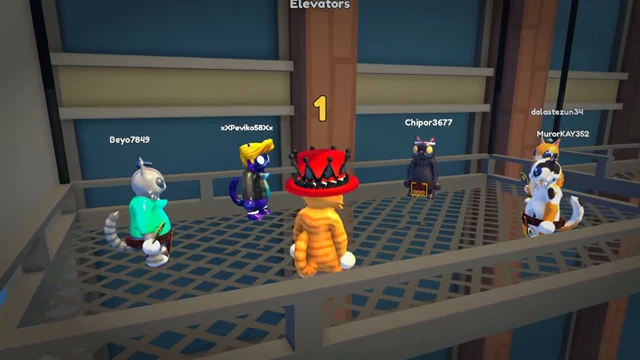
Cats wait on the metal elevator platform during the pre-bout countdown.
How can a new player rehearse these inputs?
Work through the five inputs in order during your first bout. Identify each one, then repeat the input that feels least natural before trying to develop a preferred style.
Try this practice order as a learning exercise, rather than a confirmed combo:
- Start with Click and identify the Punch action. Focus on recognizing one input before pressing several together.
- Try Right Click for Grab, then Shift for Lift as separate actions. The description gives both bindings but does not document a required sequence or guaranteed throw.
- Add F for Kick. Keep it separate from Q so you can recognize which action you triggered.
- Try Q for your ability when the interface permits it. A visible timer or error belongs in your notes; the listing does not explain cooldowns or activation requirements.
If an input appears unresponsive, first check that the game window has focus and that no chat or menu is capturing keyboard input. Then test that input by itself. This is general troubleshooting advice; it is not a claim about Cat Battles’ input handling.
Use the group scene as a visual cue for a close-range grab and lift. Keep Grab and Lift as separate entries in your practice notes.
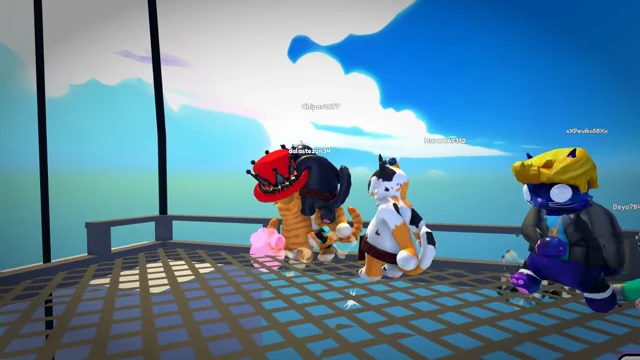
Several cats lift an opponent in the elevator arena.
Use the ring-edge scene to recognize a boundary position and note which input you pressed.
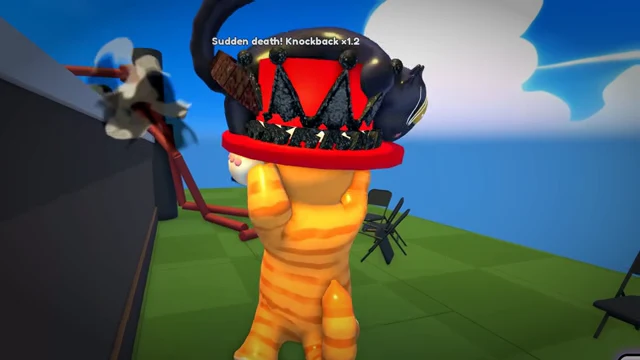
An orange cat lifts an opponent at the ring edge during a sudden-death bout.
Media credit: Cute Malt Games, official Roblox preview asset 83504175164665,
via the official Cat Battles page.
Does the promotional image show a different key?
Older promotional artwork contains the text E HIT. The current official game description says Kick (F), so use F as the current binding. The artwork does not establish a current E binding or prove that Hit and Kick are the same action.
What should you know about platform coverage?
The listing covers PC inputs only. It does not include mobile or gamepad mappings, remapping instructions, or details about how Q chooses an ability. For the eight ability names, see the abilities guide.
Once the inputs are familiar, use the beginner guide for a first-bout routine. The game modes guide lists the three advertised modes, and the codes page records the developer-listed strings.
Related Articles
guides
Cat Battles Abilities: Ability List and Q Control
See all eight Cat Battles ability names, learn the official Q control, and use a practical worksheet to record what happens in a bout.
guides
Cat Battles Roblox Beginner Guide: How to Play a Bout
Start Cat Battles Roblox with the five PC inputs, the ring objective and a first-bout practice plan. Learn where coins, crates and listed codes fit in.
guides
Cat Battles Furs and Crates: Coins and Cosmetics Guide
Learn which Cat Battles furs are named officially and how to track coins, crate contents, and collection progress.
Was this helpful?
Thanks for the feedback!